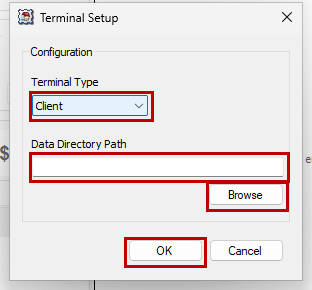
1. Automatic backups: GP Rate Pro backs up its database every day and also keeps a copy in the cloud. To see your backups and settings, click Tools › General Preferences… and choose Backups. Here you can change the Backup location and how many backups to keep (Keep at least … backups on at least … separate dates), click Backup Now to make one right away, and see all Available Backups. The Source column shows whether each backup is on this PC (Local), in the cloud (Cloud) or both.
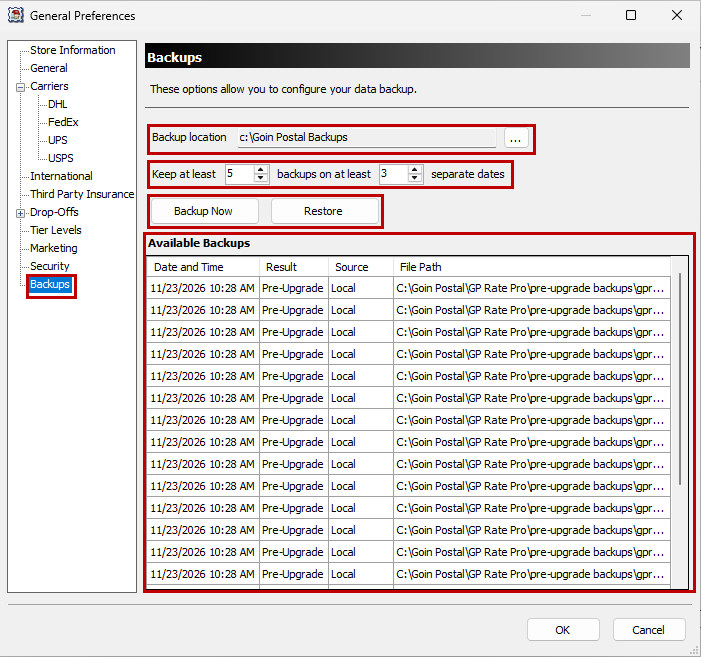
2. Make a backup file yourself: click File, then Backup…
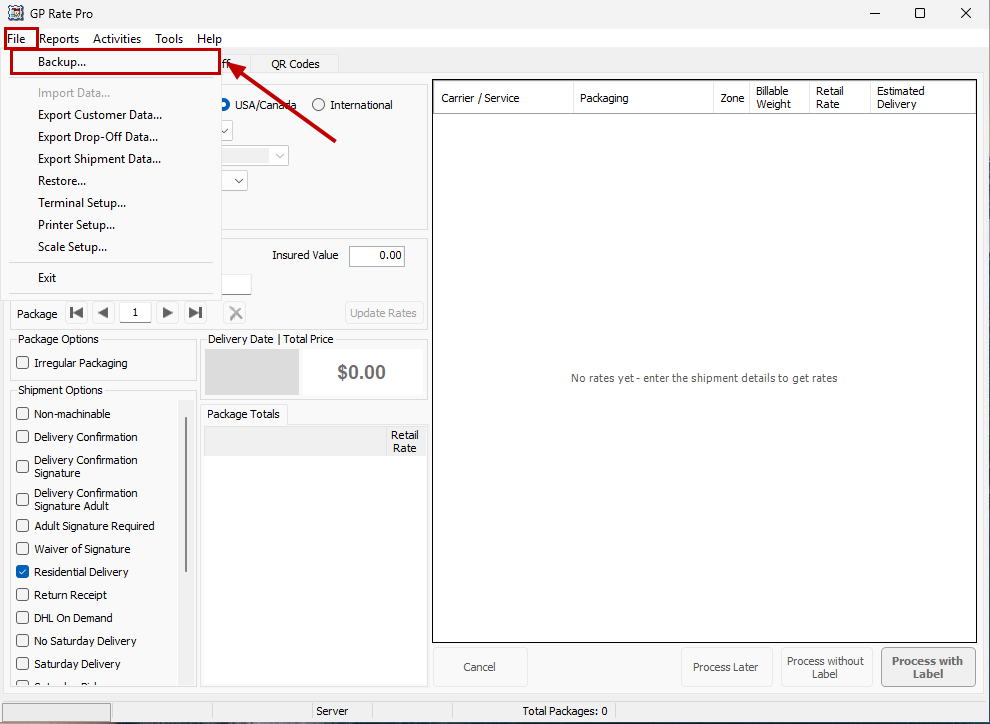
3. Choose where to save it (for example a USB drive), keep or change the File name, and click Save. The file is saved as a GP Rate Pro Backup (.bak).
4. Moving to a new PC: on the new PC, install GP Rate Pro and register it with your store’s registration key.
5. Bring your data across in one of two ways. From the cloud: open Tools › General Preferences… › Backups, select the newest backup whose Source is Cloud and click Restore. GP Rate Pro downloads it first and asks you to confirm. From a backup file: click File › Restore…
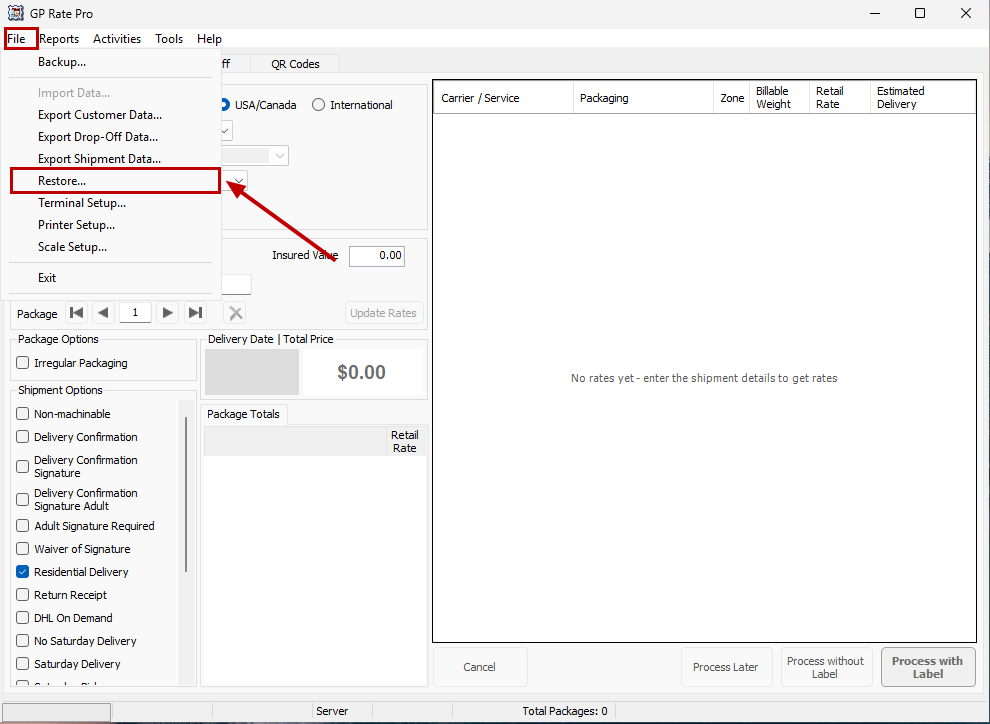
6. Select your .bak file and click Open. GP Rate Pro warns that restoring will replace the current database and cannot be undone; click Yes to continue. When restoring from General Preferences, GP Rate Pro first saves a safety copy of your current data, then restarts.
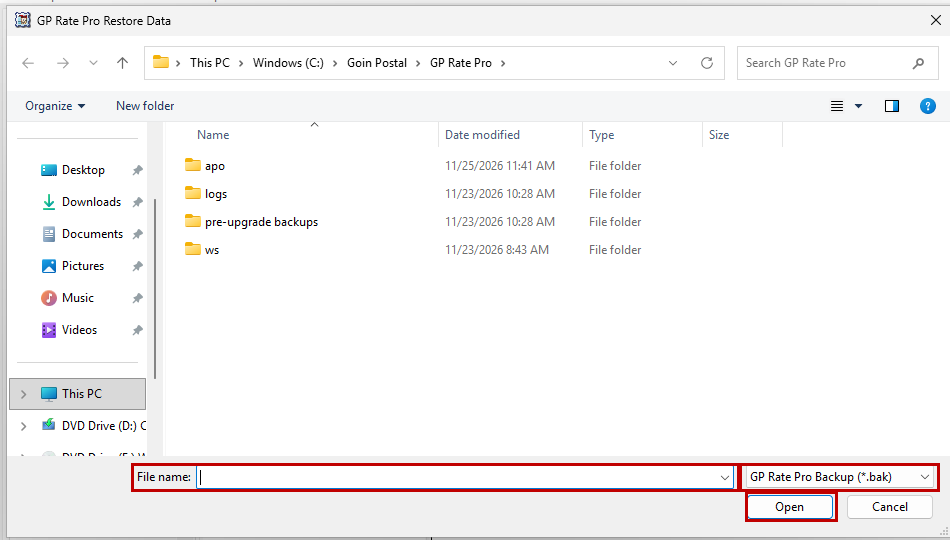
7. Finish setting up the new PC: set up your printers (How to configure Printers) and your scale (File › Scale Setup…).
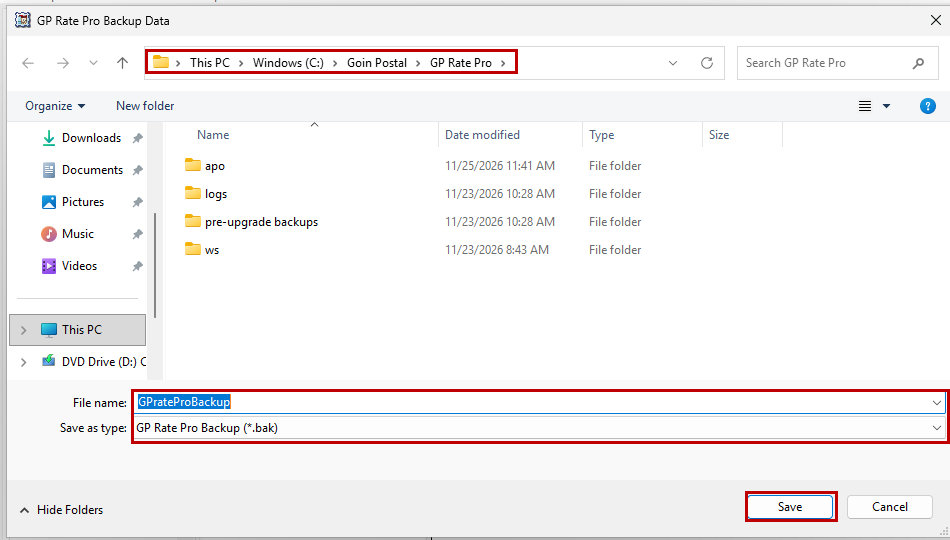
8. Stores with more than one PC: one PC holds the database (the Server); the others use it over the network (Clients). On each PC, click File › Terminal Setup…
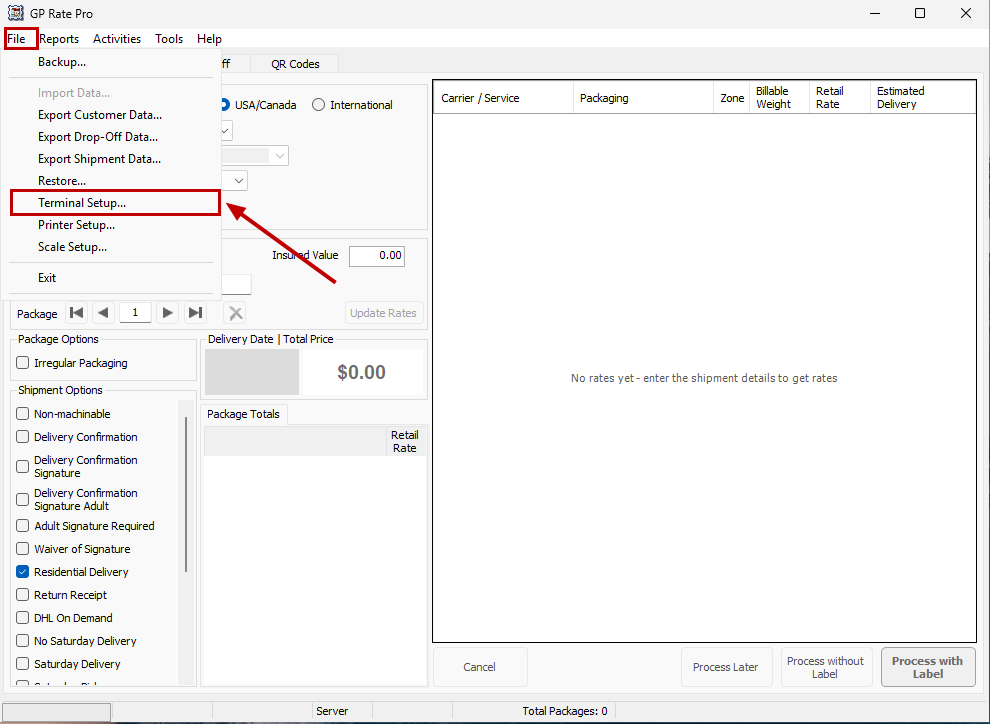
9. On the Server PC, leave Terminal Type on Server. On a Client PC, choose Client, click Browse and pick the GP Rate Pro data folder on the Server PC, then click OK. If a new PC becomes the Server, set up the Clients again to point to it. The PCs must be on a Private network to see each other.