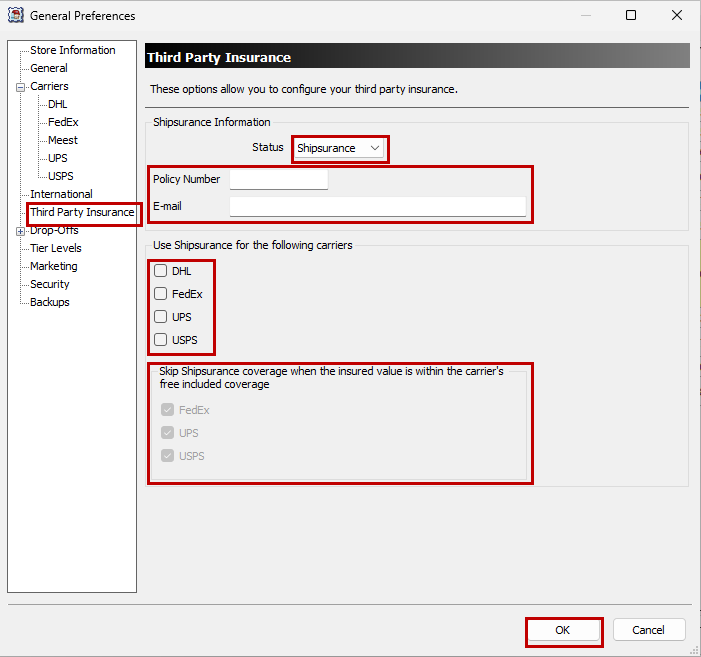
1. Set up Shipsurance: click Tools › General Preferences… and choose Third Party Insurance. Set Status to Shipsurance (or click Create New Account if you don’t have one yet). Enter your Policy Number and E-mail, tick the carriers to use Shipsurance for, and choose whether to skip Shipsurance when the insured value is within the carrier’s free included coverage. Click OK.
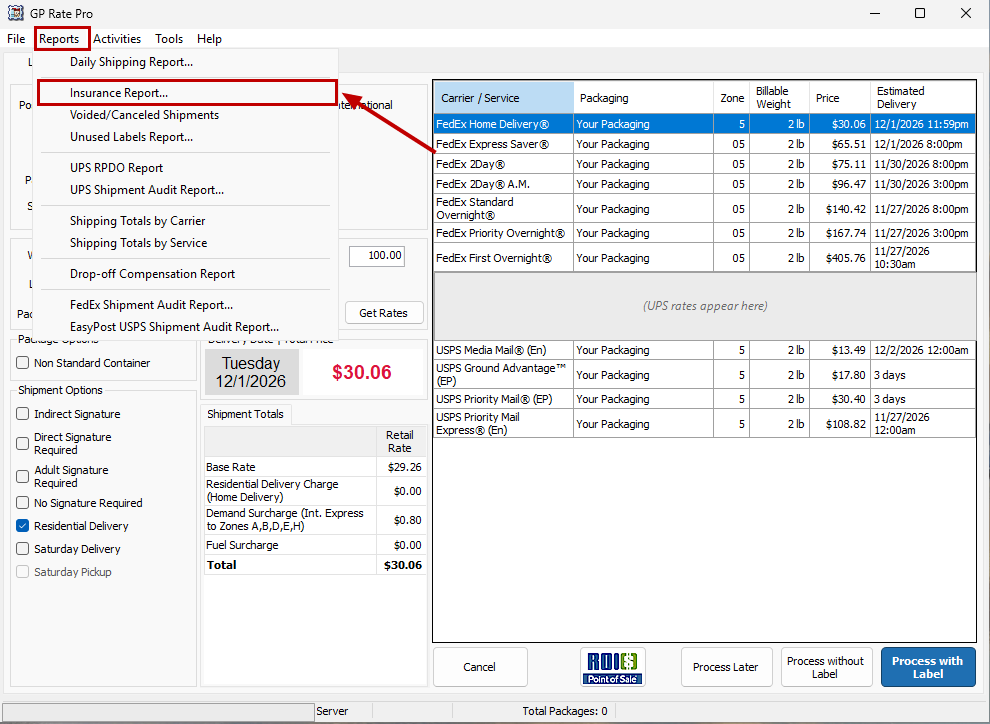
2. Insurance Report: click Reports › Insurance Report…
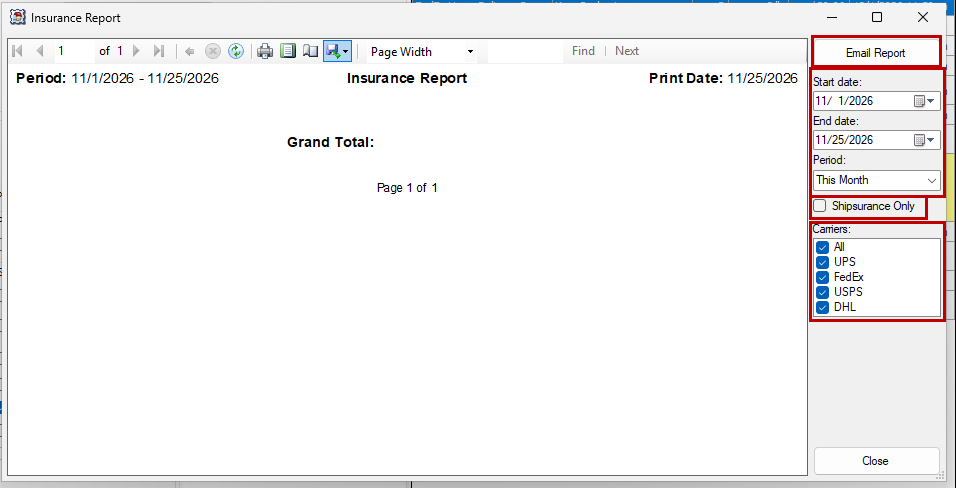
3. Choose the dates or a Period, the Carriers, and tick Shipsurance Only to see only Shipsurance-covered shipments. Use Email Report to send it.
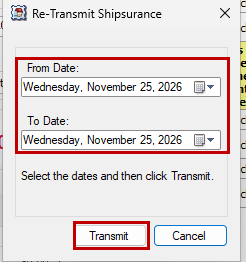
4. Re-send shipments to Shipsurance: if shipments did not reach Shipsurance, click Activities › Re-Transmit Shipsurance…, choose the From Date and To Date (both days are included) and click Transmit.
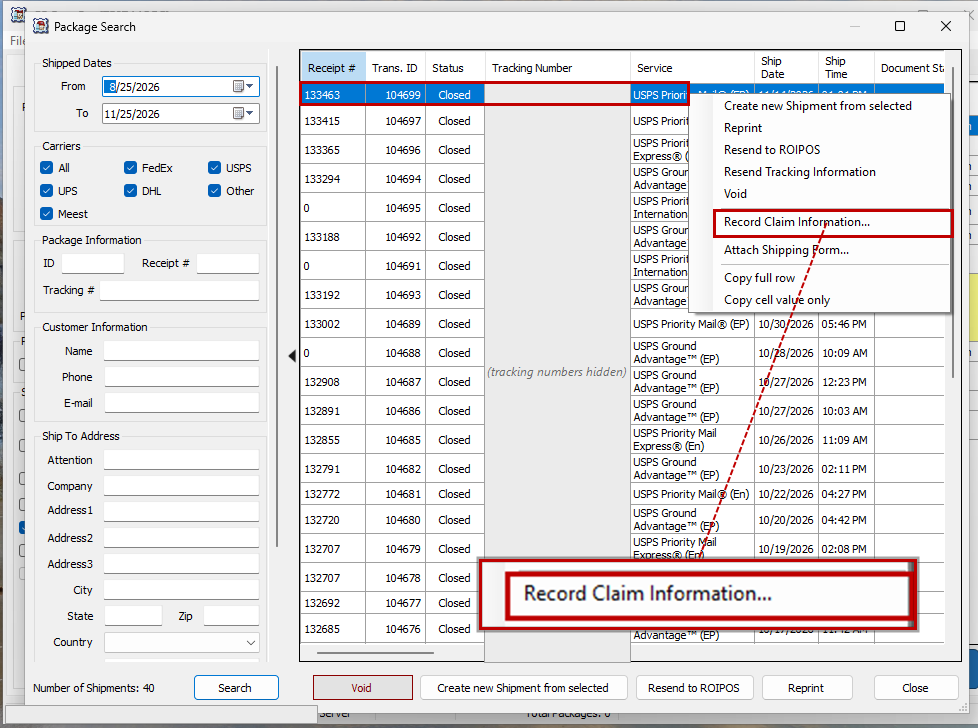
5. Record a claim: in Activities › Package Search…, find the shipment, right-click it and choose Record Claim Information… (or click the Record Claim Information button in its row). Claims can be recorded for shipments up to one year old.
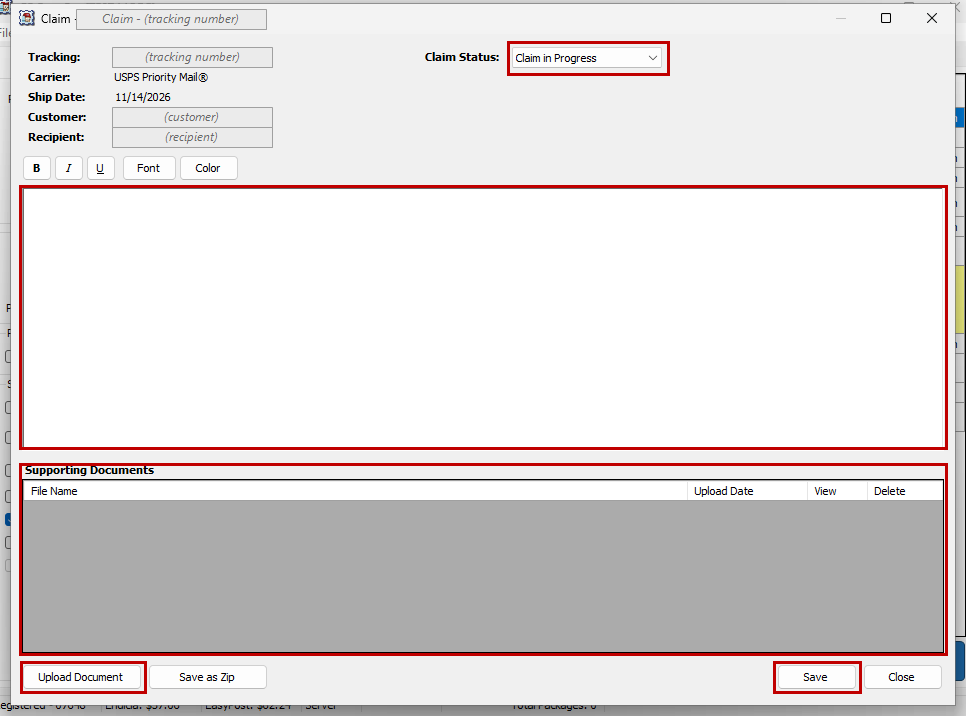
6. Set the Claim Status (Claim in Progress or Claim Closed), write notes about the claim, and click Upload Document to attach photos, receipts or carrier letters. Click Save. Save as Zip puts all the documents in one file to send to the carrier or insurer. The shipment’s row in Package Search then shows the claim’s status.