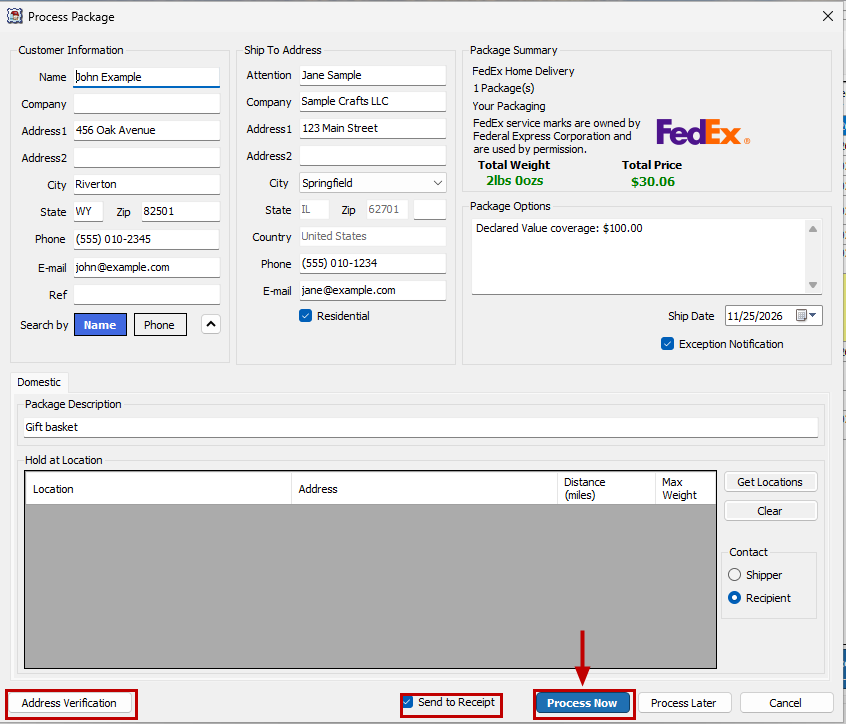
1. On the Labels tab, choose USA/Canada or International and enter the destination Postal Code (the City fills in). Enter the Weight, Length, Width, Height and the value of the contents, then click Get Rates.
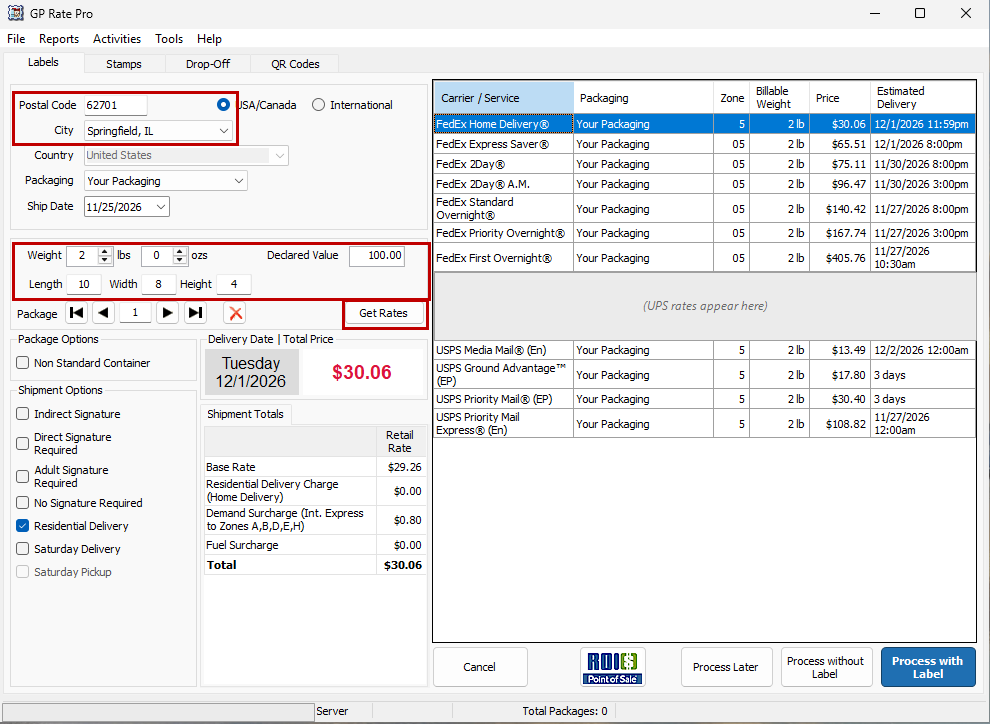
2. Click the carrier and service the customer wants. The Delivery Date | Total Price box shows the delivery date and what the customer pays, and Shipment Totals shows how the price is made up. Add any Shipment Options (for example a signature or Saturday delivery), then click Process with Label.
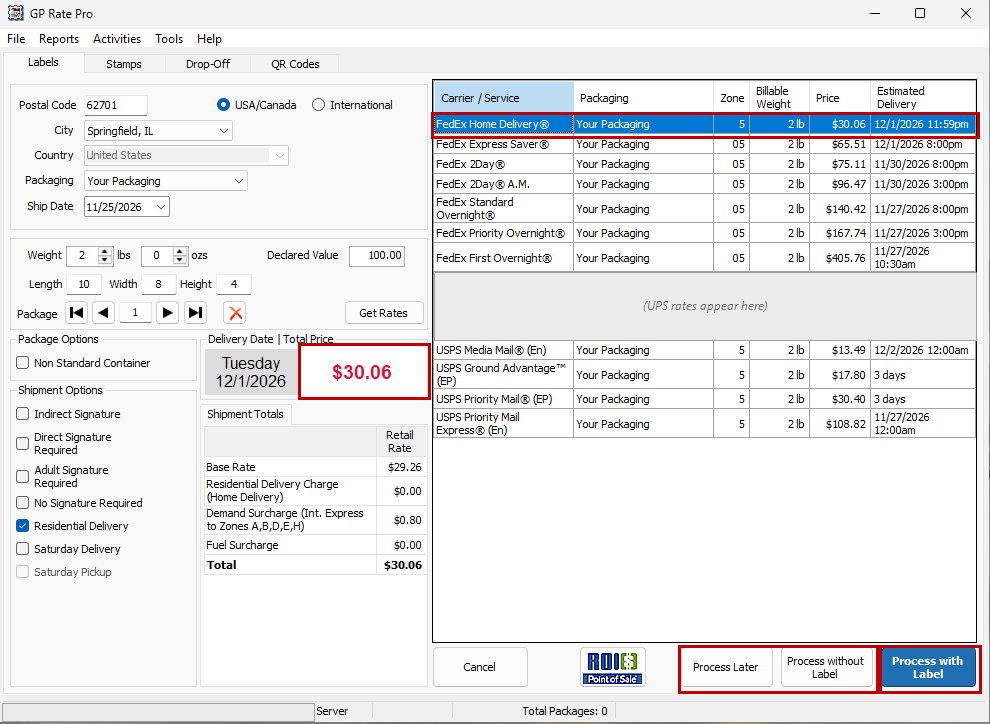
3. Other buttons: Process Later saves the shipment so you can finish it later, and Process without Label records the shipment as completed without creating a carrier label. Cancel clears the screen.
4. The Process Package window opens. Enter the Customer Information (who is paying) and the Ship To Address. To find a returning customer, type part of their name or phone number and use Search by Name or Phone.
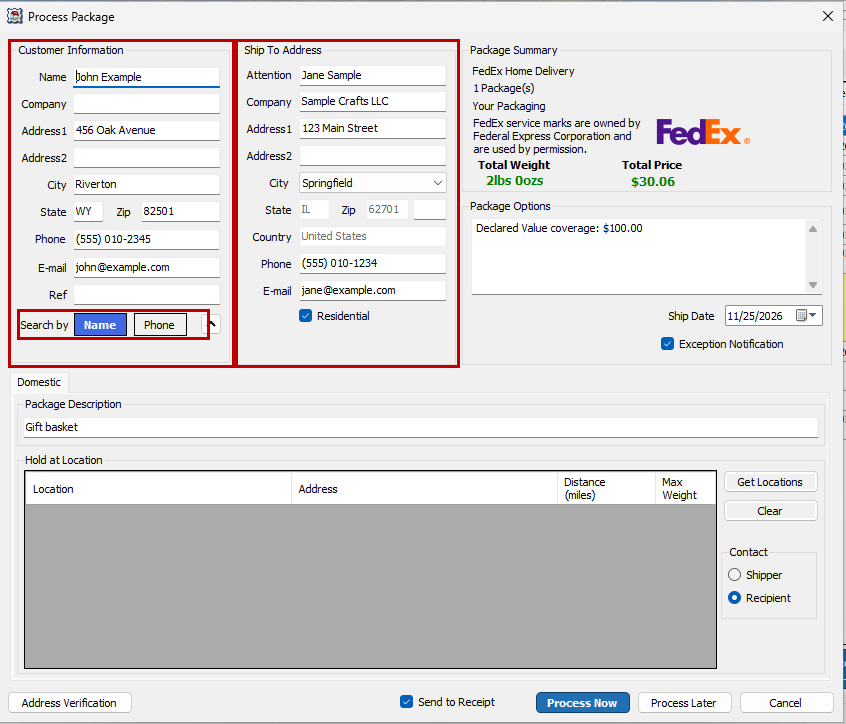
5. Click Address Verification to check the address with the carrier. Leave Send to Receipt ticked to add the charge to the customer’s receipt, then click Process Now. The label prints on your label printer.