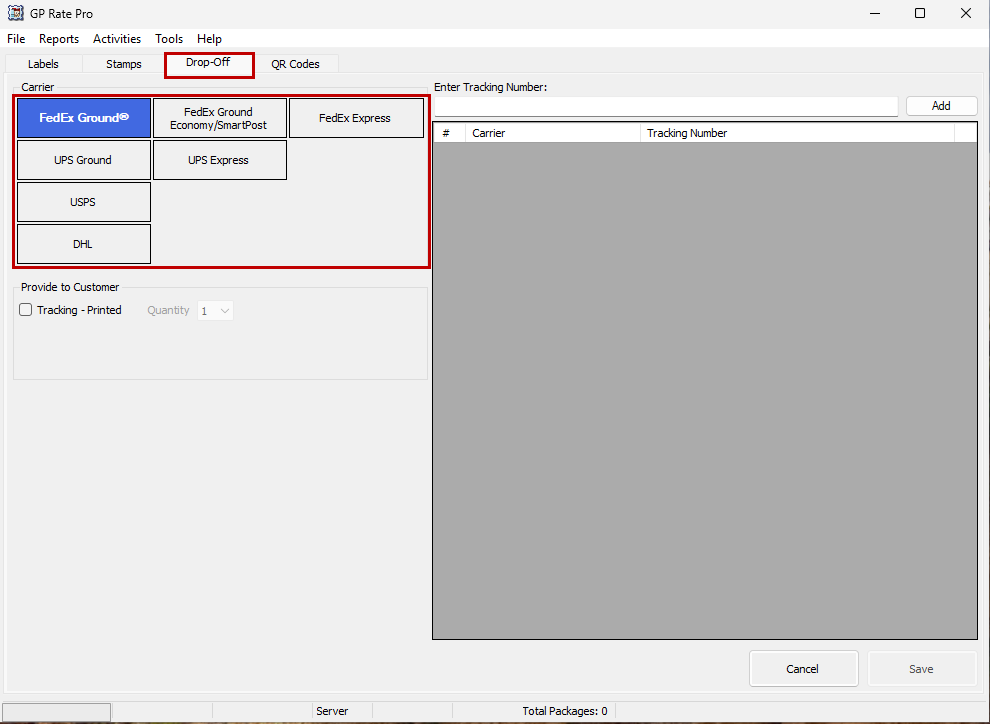
1. Click the Drop-Off tab and click the carrier of the package (FedEx Ground, FedEx Ground Economy/SmartPost, FedEx Express, UPS Ground, UPS Express, USPS or DHL).
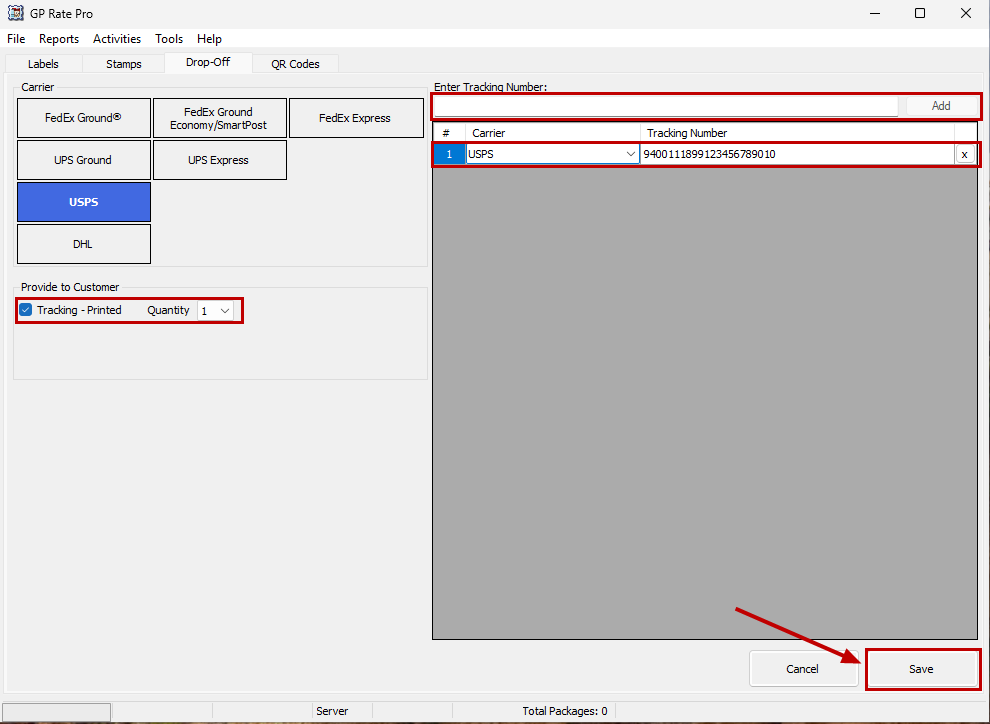
2. Scan the package’s barcode into Enter Tracking Number (or type it and click Add). Scan each package in the drop-off; each one is added to the list, and you can change a row’s carrier or remove it with the x. Tick Tracking – Printed to print a drop-off receipt for the customer, choose the Quantity of copies, then click Save. Saving sends the drop-off to the carrier.
3. GP Rate Pro will not accept a label that was printed at your own store as a drop-off; it tells you the label was made at this store. For a Meest package sold at your store, scan the UPS tracking number on the label (it starts with 1Z).
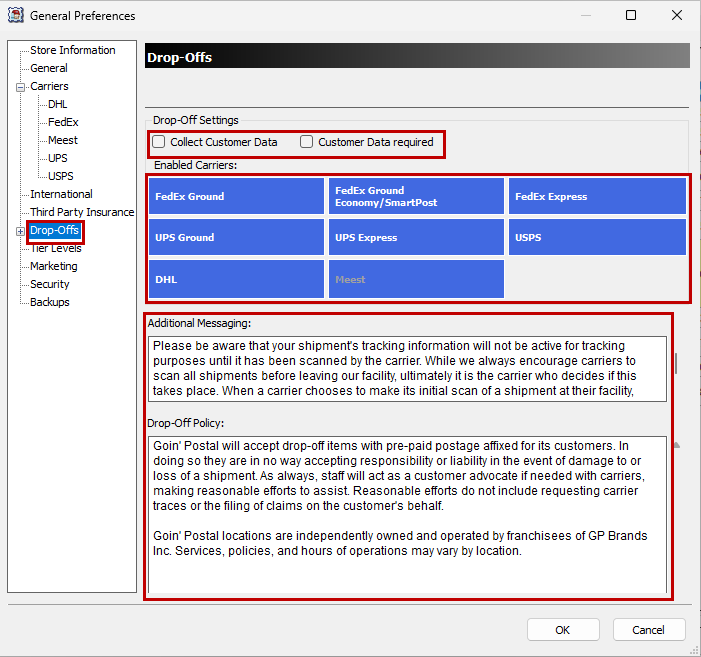
4. Drop-off settings: click Tools › General Preferences… and choose Drop-Offs. Here you choose which carriers your store accepts, edit the Additional Messaging and Drop-Off Policy printed on receipts, and turn on Collect Customer Data (and Customer Data required) if you want to record the customer’s name, phone and email with each drop-off.
5. Find a drop-off later: click Activities › Drop-Off Search…
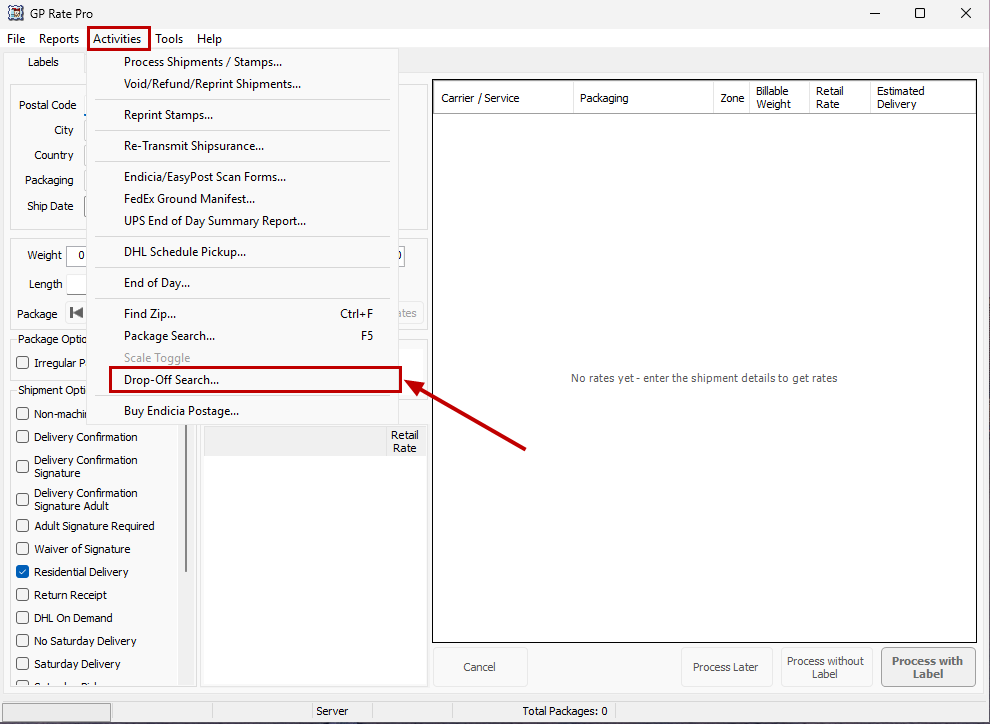
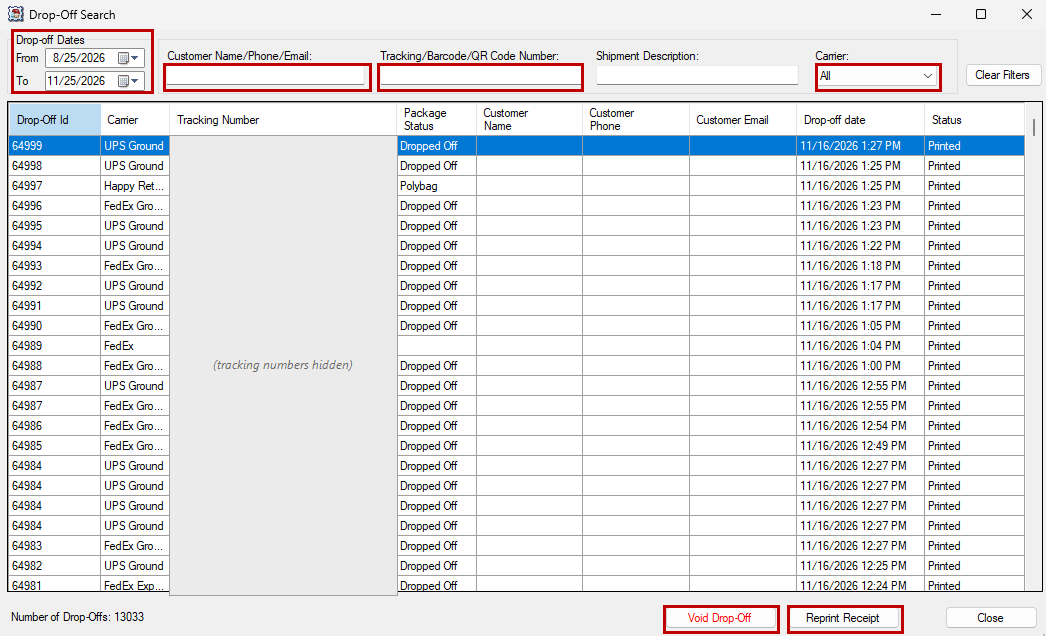
6. Filter by Drop-off Dates, customer name/phone/email, tracking or QR code number, or Carrier. Select a drop-off to Reprint Receipt, or click Void Drop-Off if it was entered by mistake.
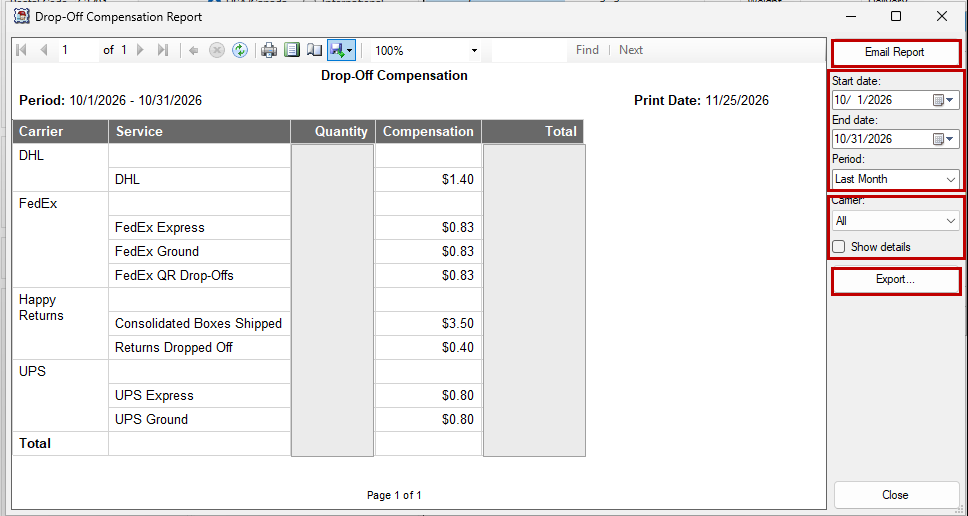
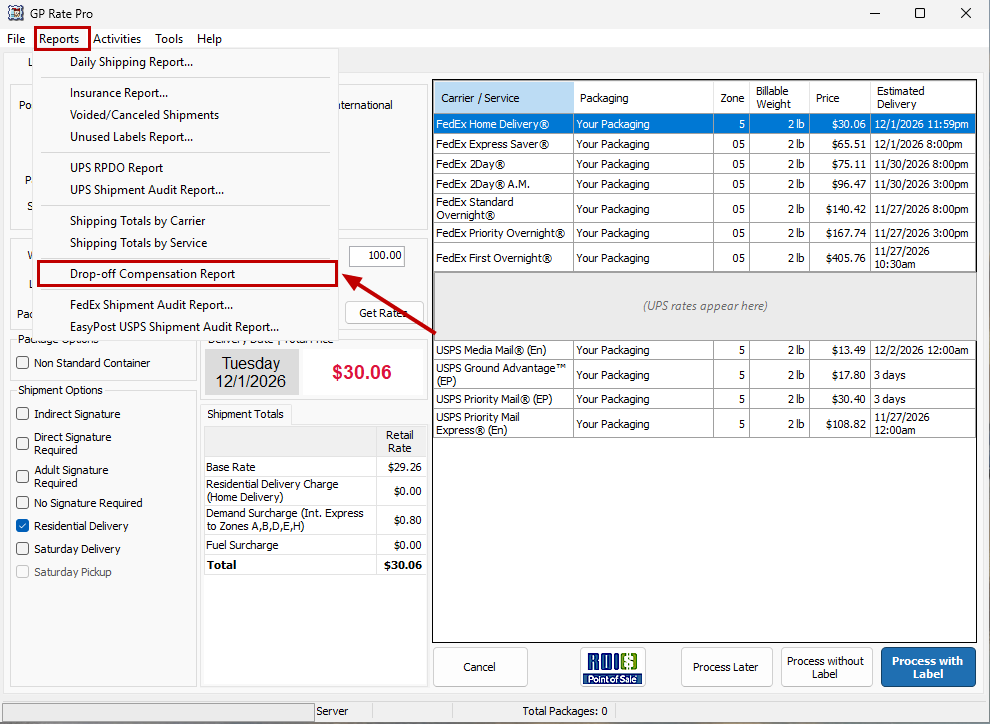
7. See what you earn from drop-offs: click Reports › Drop-off Compensation Report.
8. Choose the dates or a Period, pick one Carrier or All, and tick Show details to list each package. Use Export… to save the report as PDF, Excel or CSV, or Email Report to send it.