1. Click the QR Codes tab and click the carrier on the customer’s QR code: FedEx, USPS, or Happy Returns if your store takes Happy Returns.
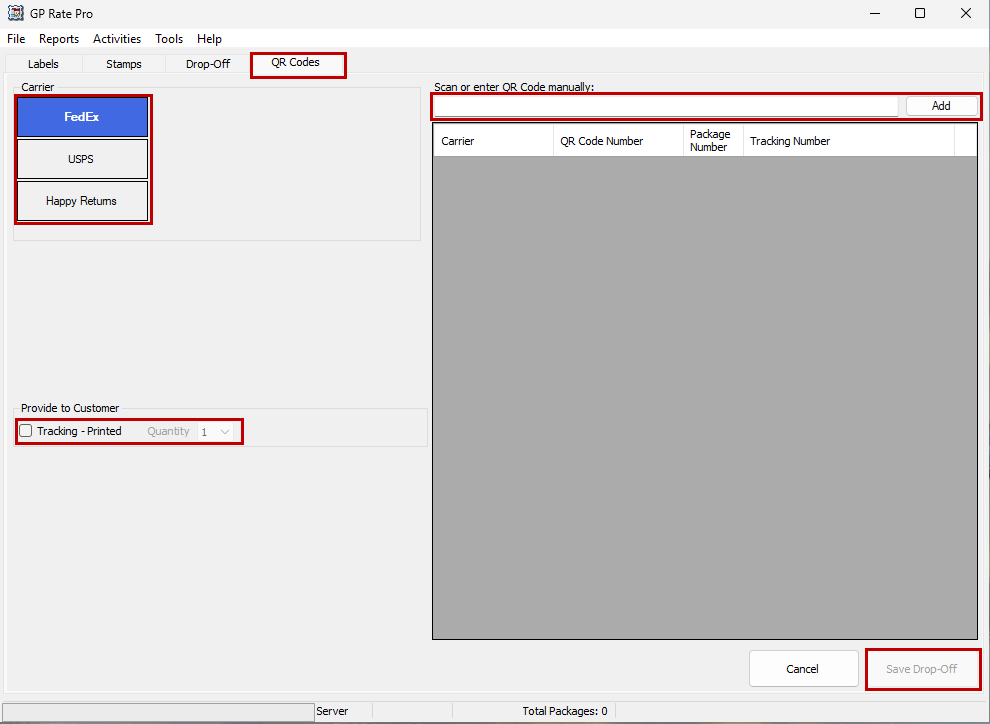
2. Scan the QR code on the customer’s phone into Scan or enter QR Code manually (or type the code and click Add). GP Rate Pro gets the return label from the carrier and prints it; the package then appears in the list with its tracking number.
3. A QR code is one label for one package. If you scan a code that is already in the list or was used before, GP Rate Pro asks “Get this label again anyway?” (No is the default). To reprint a label, use Activities › Drop-Off Search instead.
4. Some FedEx returns can only be printed at a FedEx Office location. If GP Rate Pro says so, send the customer to the nearest FedEx Office.
5. Tick Tracking – Printed to print a receipt for the customer, then click Save Drop-Off.


